[Note: This giveaway has now officially ended. 2 Winners will be randomly selected using random.org software. Winners will be posted on the WINNERS LIST shortly. In the mean time please go to our giveaway page and tell us what you want to win in our next giveaway, which should be in January].
The season of giving is here, and to help you get in the spirit, we're giving away a brand new Wacom Bamboo Tablet each to two lucky winners! Please be sure to read the Official Giveaway Rules below to see who can enter to win.
You can come back daily to enter for the duration of the contest (30 days).
Note: Please do not modify the tweets to take out the urls or @ or # symbols. If these are taken out of the tweets, those entries are not valid. When you tweet you will also need to give the url to the tweet or your entry will not be valid. Thank you.
** N O T I C E ** I moderate this giveaway daily to remove fradulent entries. It's surprising how many fradulent entries there are. I check every single tweet, every follow, every like. If I find you're just copy/pasting the same tweet in for every entry, ALL of the copies get deleted. If you're just entering gibberish into the extra info section, those entries get deleted. Best effort is made on my part to delete all fradulent entries so that those of you who are entering the correct way will have your fair chance. If you notice your entries have been deleted, this is why. Best effort is made on my part to make this a fair giveaway. To those of you entering correctly, thank you, and I appreciate the tweets, likes, follows, comments, etc that you are giving to this site and the giveaway sponsors. It's the followers like you, those willing to do things the right way, that are the reason I want to give awesome tablets away! To those who just think I'm stupid and won't look to see if you actually entered correctly, think again.
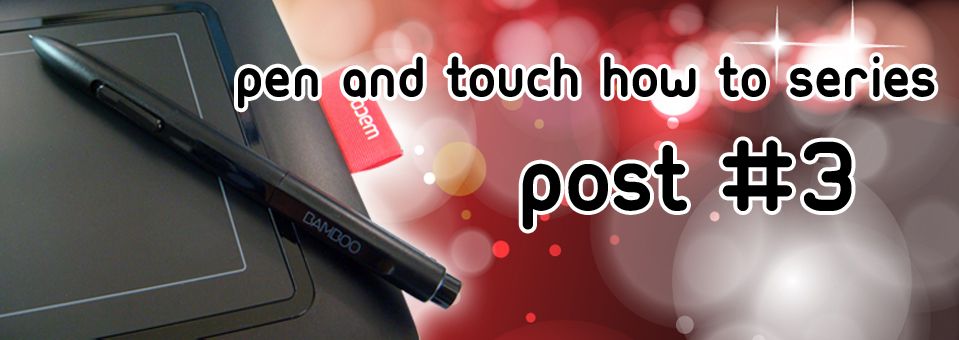
- Wacom Bamboo Pen and Touch
- Two sensors for precise pen and Multi-Touch input
- Pressure-sensitive pen tip for natural pen and brush strokes
- Quick access to user-defined shortcuts with four ExpressKeys
- Comes with Adobe Photoshop Elements 7.0 Win / 6.0 Mac for editing, retouching, enhancing and sharing digital photos
- Battery-free, ergonomic pen with two switches (plugs into computer with USB). Pen stores in red tag on side of tablet.
- Active Area Touch (W x H) - 4.9" x 3.4" (124mm x 86mm); Pen (W x H) - 5.8" x 3.6" (147mm x 91mm)
This is the tablet that I have and use, and I love love love it. If you've never used a drawing tablet before it may take you some time to adjust to using it while looking at the computer screen, and also to adjust the settings the way you like them. There are a variety of YouTube videos showing how to use and set up this tablet to work in Photoshop, and we will be featuring those videos on Photoshop Helps.
Winners will be chosen on or around 12/17/2012, and will be announced to the public HERE. Winners will be notified via e-mail. There will be two winners. Each winner will receive one Wacom Bamboo Pen and Touch Tablet as indicated above.
Sponsors:
Thank you to our wonderful sponsors who paid for these tablets:
Please be sure to visit our sponsors to see the kind of resources and information they have to offer. Also be sure to enter the contest by tweeting about them in the contest entry widget!
Official Giveaway Rules
NO
PURCHASE NECESSARY. A PURCHASE OR PAYMENT OF ANY KIND WILL NOT INCREASE
YOUR CHANCES OF WINNING. PLEASE READ ALL RULES.
ELIGIBILITY
- Sweepstakes/Giveaways are open
only to legal residents of the fifty (50) United States (including
District of Columbia) who are at least eighteen (18) years old at the time
of entry.
- The immediate family (spouse,
parents, siblings and children) and household members of JATomlinson
(Owner, Photoshophelps), and owners of the giveaway sponsors and blogs are
not eligible. Subject to all applicable federal, state and local laws and
regulations. Void where prohibited.
- Participation constitutes
entrant’s full and unconditional agreement to these Official Rules and
Sponsor’s and Administrator’s decisions, which are final and binding in
all matters related to the Promotion. Winning a prize is contingent upon
fulfilling all requirements set forth herein.
TIMING
- The Promotion ends as specified
in the footer of each individual Sweepstakes at 11:59 p.m. EST (the
“Promotion Period”). Administrator’s computer is the official time keeping
device for this Promotion.
HOW TO ENTER
- During the Promotion Period,
follow the instructions in the Required Entry section in each Promotion.
You automatically will receive the specified number of Sweepstakes entries
indicated by completing the Required Entry form for that particular Promotion.
- In addition, you may earn Extra
Entries for completing the non-required entries.
Limit: Multiple entrants are not permitted to share the same email
address and/or household. Any attempt by any entrant to obtain more than the
stated number of plays/entries by using multiple/different email addresses,
identities, registrations and logins, or any other methods will void that
entrant’s plays/entries and that entrant may be disqualified. Use of any
automated system to participate is prohibited and will result in
disqualification. Sponsors, administrators, and owners are not responsible for
lost, late, incomplete, invalid, unintelligible or misdirected registrations,
which will be disqualified. In the event of a dispute as to any registration or
play, the authorized account holder of the email address used to register will
be deemed to be the registrant or player. The “authorized account holder” is
the natural person assigned an email address by an Internet access provider, online
service provider or other organization responsible for assigning email
addresses for the domain associated with the submitted address. Potential
winners may be required to show proof of being the authorized account holder.
WINNER SELECTION
Administrator
is an independent judging organization whose decisions as to the administration
and operation of the Promotion and the selection of potential winners are final
and binding in all matters related to the Promotion. Administrator will
randomly select the potential Sweepstakes winner, from all eligible entries
through the use of Random.org Random Integer Generator on or around
the end date specified for the Promotion Period.
VERIFICATION OF POTENTIAL WINNERS
- Potential winners must continue
to comply with all terms and conditions of these Official Rules, and
winning is contingent upon fulfilling all requirements.
- The potential Sweepstakes
winner will be notified by email. Except where prohibited, each potential prize
winner will be required to reply to notification email, within two (2)
days of the date notice is sent (as noted on email timestamp), in
order to claim his/her prize.
- If a potential winner of any
prize cannot be contacted, fails to reply to the notification email within
the required time period (if applicable), or prize is returned as
undeliverable, potential winner forfeits prize.
- In the event that a potential
Prize winner is disqualified for any reason, Sponsor will award the
applicable prize to an alternate winner by random drawing from among all
remaining eligible entries. There will be one (1) alternate drawing after
which the applicable prize will remain unawarded.
ALL PRIZES
All
prizes are non-transferable and no substitution will be made except as provided
herein at the Sponsor’s sole discretion. Sponsor reserves the right to
substitute a prize for one of equal or greater value if the designated prize
should become unavailable for any reason. Winner is responsible for all taxes
and fees associated with prize receipt and/or use.
RELEASE
By
receipt of any prize, winner agrees to release and hold harmless Administrator
(Jessica Tomlinson), Sponsor, and their respective subsidiaries, affiliates,
suppliers, distributors, advertising/promotion agencies and each of their
respective parent companies and each such company’s officers, directors,
employees and agents (collectively, the “Released Parties”) from and against
any claim or cause of action, including, but not limited to, personal injury,
death, or damage to or loss of property, arising out of participation in the
Promotion or receipt or use or misuse of any prize.
GENERAL CONDITIONS
- Administrator reserves the
right to cancel, suspend and/or modify the Promotion, or any part of it,
if any fraud, technical failures or any other factor beyond
Administrator’s reasonable control impairs the integrity or proper
functioning of the Sweepstakes, as determined by Administrator in its sole
discretion. In such event, Administrator reserves the right to award the
prizes at random from among the eligible entries received up to the time
of the impairment.
- Administrator reserves the
right, in its sole discretion, to disqualify any individual it finds to be
tampering with the entry process or the operation of the Sweepstakes or to
be acting in violation of these Official Rules or any other promotion or
in an unsportsmanlike or disruptive manner.
- Any attempt by any person to
deliberately undermine the legitimate operation of the Sweepstakes may be
a violation of criminal and civil law, and, should such an attempt be
made, Administrator reserves the right to seek damages from any such
person to the fullest extent permitted by law. Administrator’s failure to
enforce any term of these Official Rules shall not constitute a waiver of
that provision.
LIMITATIONS OF LIABILITY
The
Released Parties are not responsible for: (1) any incorrect or inaccurate
information, whether caused by entrants, printing errors or by any of the
equipment or programming associated with or utilized in the Promotion; (2)
technical failures of any kind, including, but not limited to malfunctions,
interruptions, or disconnections in phone lines or network hardware or
software; (3) unauthorized human intervention in any part of the entry process
or the Promotion; (4) technical or human error which may occur in the
administration of the Promotion or the processing of entries; or (5) any injury
or damage to persons or property which may be caused, directly or indirectly,
in whole or in part, from entrant’s participation in the Promotion or receipt
or use or misuse of any prize. If for any reason an entrant’s entry is
confirmed to have been erroneously deleted, lost, or otherwise destroyed or
corrupted, entrant’s sole remedy is another entry in the Sweepstakes, provided
that if it is not possible to award another entry due to discontinuance of the
Promotion, or any part of it, for any reason, Administrator, at its discretion,
may elect to hold a random drawing from among all eligible entries received up
to the date of discontinuance for any or all of the prizes offered herein. No
more than the stated number of prizes will be awarded. In the event that
production, technical, seeding, programming or any other reasons cause more than
stated number of prizes as set forth in these Official Rules to be available
and/or claimed, Administrator reserves the right to award only the stated
number of prizes by a random drawing among all legitimate, unawarded, eligible
prize claims.
WINNER LIST
Winner
List requests will only be accepted after the promotion end date. For the
complete Winner(s) List, visit http://photoshophelps.blogspot.com/2012/05/official-winners-list.html
 NOTICE
This contest is not sponsored by Wacom or its affiliates.
If you have questions you can post them in a comment below!
Also, if you enjoy this giveaway and want to see more giveaways from us in the future, let us know in a comment below the types of items you'd like to see us give away!
This giveaway is featured on Sweepstakes Advantage. Instant Win







 NOTICE


![Win 1 of 2 Wacom Bamboo Tablets! [Ended]](https://blogger.googleusercontent.com/img/b/R29vZ2xl/AVvXsEhGYniTxJP9YxS3Q9l8RrarQjDYZJUkBdYe1Avd7_eQ0JkL_g-xjUqYl5w4heEhpwSR9c_gWxr1a2JIEWWJEKunlH2FIEHbvVs7IM3zUMzBrIazJDzH07cke2lsv-G8lR762i5wwyK0nUCB/s72-c/Bamboo+Tablet+Contest+Slider+Post.jpg) Win 1 of 2 Wacom Bamboo Tablets! [Ended]
Win 1 of 2 Wacom Bamboo Tablets! [Ended]
 The Wacom Pen and Touch - Setting Up Your Tablet To Draw In Photoshop
 Tutorials
 Write For Us
 Make Curved Lines In Photoshop Elements (PSE)
 Where To Sell Your Designs
 Sponsor A Giveaway
 Free Fonts
 Creating Brushes in Photoshop
 Roundup - 20 Creepy Halloween Photoshop Tutorials
